
AI image-generation tools have exploded in popularity, and Leonardo AI has quickly become one of the most powerful platforms for artists, beginners, designers, and content creators. If you’re new to AI art, this guide will teach you how to use Leonardo AI step-by-step in simple, clear language.
Leonardo AI is known for its high-quality images, detailed control, fast generation, and beginner-friendly interface. Whether you want to create characters, product photos, logos, thumbnails, or landscapes, Leonardo gives you everything in one place.
Let’s explore how it works from start to finish.
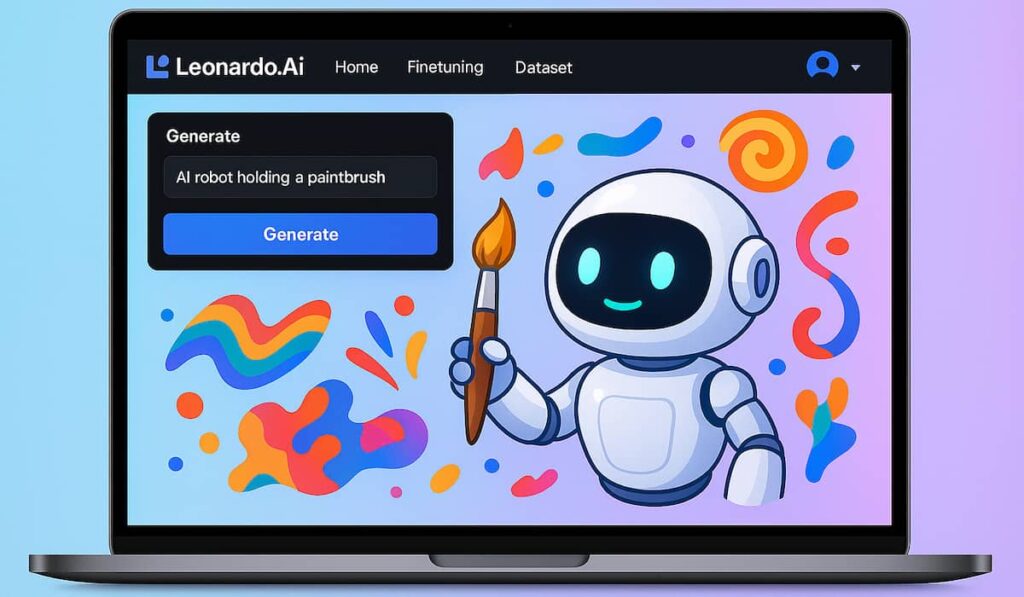
⭐ 1. What Is Leonardo AI? (Beginner Explanation)
Leonardo AI is a creative AI image-generation platform that allows users to:
- Generate high-quality AI images
- Edit and enhance images
- Create characters, logos, and digital art
- Use pre-trained AI models
- Train your own custom models
- Create animations
- Use templates and presets
- Build consistent characters for stories or brands
Unlike other platforms, Leonardo AI is designed for both beginners and professionals, making it one of the most versatile tools in 2025.
⭐ 2. How to Create an Account on Leonardo AI
Before learning how to use Leonardo AI, you need to sign up.
✔ Step 1: Visit Leonardo.ai
Open your browser and go to Leonardo.ai.
✔ Step 2: Click “Get Started” or “Login”
You can sign in using:
- Apple
- Email/password
✔ Step 3: Choose your plan
Leonardo offers:
- Free plan (good for beginners)
- Paid plans (for more power + image generation credits)
Once you’re inside, you will see the dashboard — this is where the magic begins.
⭐ 3. How to Use Leonardo AI to Create Images
Creating images with Leonardo AI is simple, even if you’ve never used AI tools before.
✔ Step 1: Go to “Image Generation”
This is the main section where you create artwork.
✔ Step 2: Type your prompt
A prompt is the description of the image you want.
Example:
👉 “Cute baby dragon sitting on a cloud, Pixar-style, soft lighting, detailed textures.”
The clearer your prompt, the better the results.
✔ Step 3: Choose a model
Leonardo offers many AI models, such as:
- Leonardo Diffusion (general use)
- Anime Pastel Dream (anime style)
- 3D Model Style
- Leonardo Vision XL
- Photoreal models
Each model gives different results.
✔ Step 4: Adjust settings
Controls include:
- Image size
- Guidance scale
- Number of images
- Style presets
- Seed (for consistent results)
- Camera angle
- Mood/tone
Beginners can leave most settings at default.
✔ Step 5: Click “Generate”
Your images will appear within seconds — high-quality and ready to download.
⭐ 4. How to Write Good Prompts in Leonardo AI
Prompt quality = output quality.
Here’s how to write effective prompts.
✔ Use specific details
Bad prompt:
“Dog in garden.”
Good prompt:
“Golden retriever puppy playing in a flower garden, soft sunlight, hyper-realistic, shallow depth of field.”
✔ Add style keywords
Examples:
- cinematic
- photorealistic
- cartoon
- watercolor
- futuristic
- retro 90s
✔ Mention lighting
- soft glow
- neon lights
- studio lighting
- golden hour
✔ Describe the mood
- peaceful
- dramatic
- cheerful
✔ Add quality boosters
- sharp details
- ultra HD
- 4K resolution
- high texture depth
Leonardo responds very well to descriptive prompts because its models are trained for visual clarity.
⭐ 5. How to Use Leonardo AI’s “Prompt Magic” (Hidden Gem)
Prompt Magic is Leonardo’s built-in system that enhances your prompts without you needing extra experience.
It:
✔ Improves prompt structure
✔ Adds artistic details
✔ Boosts quality
✔ Fixes common prompt mistakes
Turn it ON for better results — especially for beginners.
⭐ 6. How to Use Leonardo’s “Canvas Editor” (Photoshop Alternative)
One of the most powerful features for people learning how to use Leonardo AI is the Canvas Editor.
You can:
- edit images
- remove backgrounds
- fix mistakes
- add new objects
- erase and regenerate sections
- change faces
- adjust lighting
- extend the image beyond borders (outpainting)
Example:
Erase a character’s hand → regenerate → Leonardo fixes it perfectly.
Canvas Editor is like Photoshop + AI combined.
⭐ 7. How to Use Leonardo AI for Product Photos (Very Popular in 2025)
Creators, Amazon sellers, and business owners love this feature.
You can create:
✔ product photos
✔ ad images
✔ mockups
✔ packaging designs
How it works:
- Upload your product image
- Choose a background type
- Select scenes like:
- tropical beach
- modern studio
- marble table
- office desk
- Leonardo places your product in realistic environments
- You get professional-quality images instantly
This saves thousands of dollars in photography costs.
⭐ 8. How to Train Your Own Model in Leonardo AI (Advanced but Easy)
If you want consistent characters or brand visuals, this is the best feature.
How to train:
- Upload 8–15 reference images
- Name your model
- Select training options
- Wait a few minutes
- Generate unlimited images in the same style
Perfect for:
- YouTubers
- Story writers
- Game creators
- Influencers
- Brands
Your own AI model = consistent, unique art.
⭐ 9. How to Create AI Animations in Leonardo AI
Leonardo added animation support, where you can convert images into short animated loops.
You can animate:
- characters
- landscapes
- logos
- 3D-style scenes
This is useful for:
- YouTube
- TikTok
- Instagram Reels
- Games
- Ads
Animations generate higher engagement than static images.
⭐ 10. Common Mistakes Beginners Make in Leonardo AI
Avoid these to get better results:
❌ One-word prompts
❌ Not choosing the right model
❌ Ignoring aspect ratio
❌ Forgetting to adjust details
❌ Skipping “Prompt Magic”
❌ Using low-resolution settings
❌ Not adding style or lighting info
Fixing these improves your images instantly.
⭐ 11. Best Prompts for Beginners (Copy These)
⭐ Character Prompt
“Fantasy female warrior, silver armor, glowing sword, cinematic lighting, detailed face, 4K resolution.”
⭐ Product Photo Prompt
“Modern skincare bottle on a marble table, soft natural lighting, realistic studio photography.”
⭐ Landscape Prompt
“Floating island above the clouds, waterfalls, bright sunlight, ultra-detailed fantasy scene.”
⭐ Logo Prompt
“Minimalist logo of an AI robot, blue and white theme, clean and professional design.”
⭐ 12. Who Should Use Leonardo AI?
Leonardo AI is perfect for:
- Students
- Influencers
- Bloggers
- Designers
- YouTubers
- Digital marketers
- Small businesses
- Illustrators
- Game creators
Its flexibility makes it useful for everyone.
⭐ Conclusion
Learning how to use Leonardo AI is simple once you understand the basics: prompts, models, and editing tools. Leonardo is one of the few platforms that works for beginners and advanced creators, giving everyone the power to make stunning, professional AI images with almost no effort.
Whether you want to build characters, product photos, logos, artwork, or animations, Leonardo AI has everything you need in one powerful platform.
Start experimenting, try different styles, use clear prompts, and you’ll improve faster than you expect.
⭐ FAQ
1. Is Leonardo AI free?
Yes — the free plan offers daily credits.
2. Is Leonardo better than Midjourney?
For beginners and product photography, yes. For artistic realism, Midjourney is stronger.
3. Do I need experience to use Leonardo AI?
No — it’s built for beginners.
4. Can Leonardo AI make videos?
Yes — it supports short animations.