
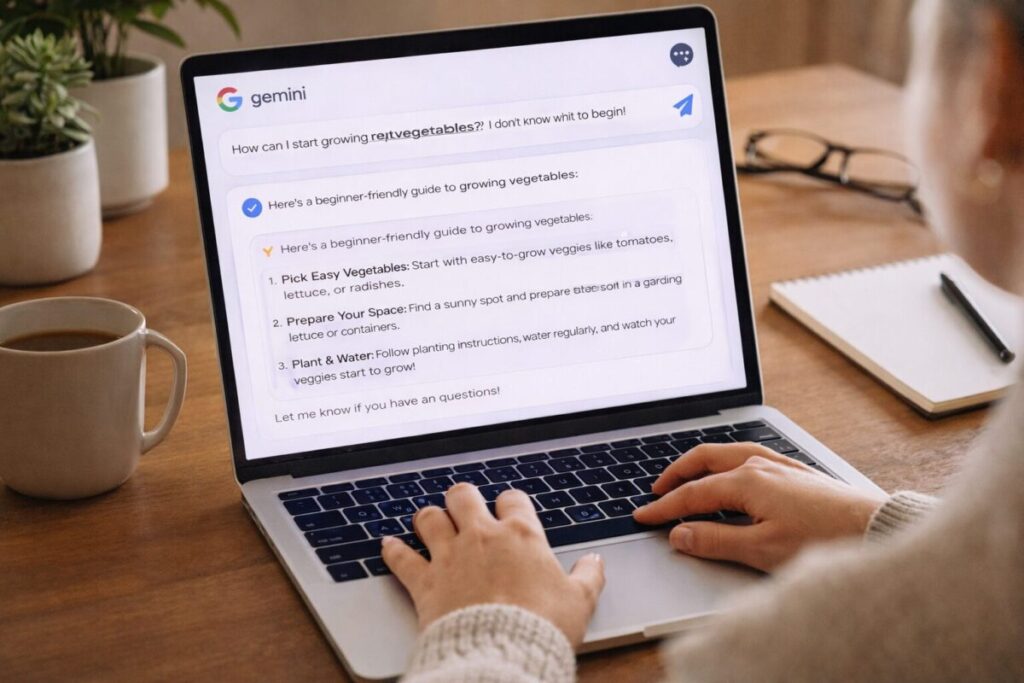
I didn’t start using google gemini because I wanted another “AI app.” I started because I wanted fewer stuck moments in my day. You know those moments—when your brain is tired, you’re jumping between tasks, and you just need a clean next step.
What surprised me is that google gemini works best when I treat it like a practical assistant, not a magical brain. I don’t ask it to “do everything.” Instead, I use it for specific jobs: quick planning, simplifying information, turning messy notes into structure, and generating options when I’m stuck.
In this post, I’ll share the real ways I use google gemini in daily life, with simple examples you can copy. I’ll keep it beginner-friendly, honest, and not overly hype. I’ll also include my ratings, what I avoid, and a FAQ at the end. ✅
My simple rule before using google gemini 🎯
Before I type anything, I decide what kind of help I want:
- Clarity (explain something in simple words)
- Structure (outline, steps, checklist)
- Options (give choices and compare)
- Polish (rewrite and improve)
This one decision saves time because I stop writing vague prompts.
google gemini for everyday planning (the “less stress” use) 🗓️
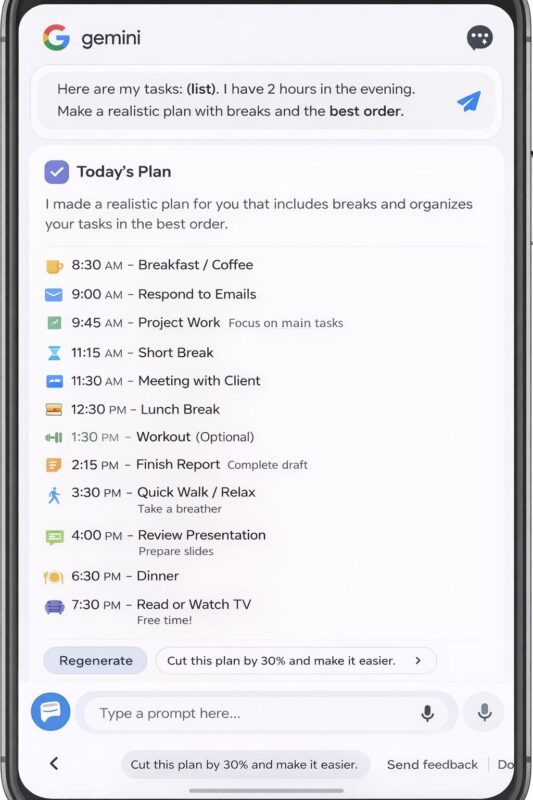
When my day feels messy, I use google gemini like a planning buddy. Not a strict schedule machine—more like a “help me organize this” tool.
Real example: planning a busy day
What I type:
- “Here are my tasks: (list). I have 2 hours in the evening. Make a realistic plan with breaks and the best order.”
What I like about this:
- It gives a clean sequence (instead of me overthinking)
- It helps me notice what’s “optional” vs “must-do”
My quick tip
If the plan looks too ambitious, I reply:
- “Cut this plan by 30% and make it easier.”
That one line fixes most unrealistic schedules.
google gemini for learning and studying (fast understanding) 📚
This is one of my favorite uses. When I’m learning something new, I don’t want a long lecture. I want simple explanation + a quick example.
Real example: learning a concept
What I type:
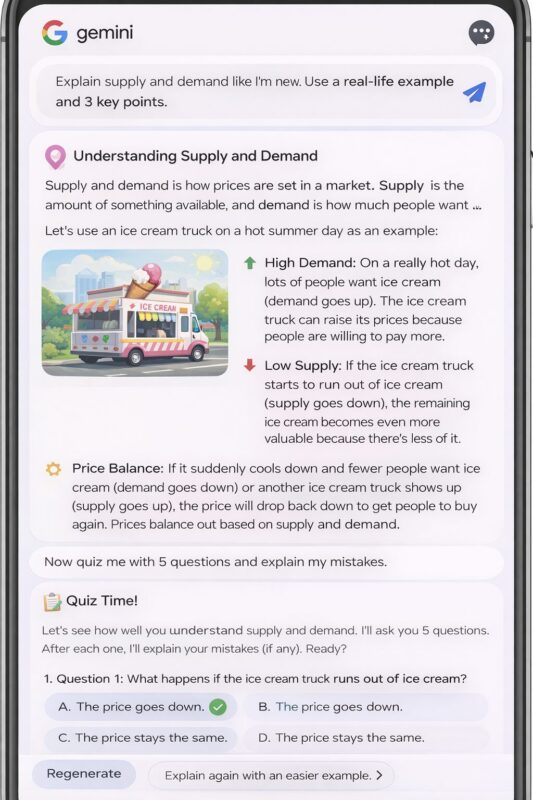
- “Explain (topic) like I’m new. Use a real-life example and 3 key points.”
Then I follow up with:
- “Now quiz me with 5 questions and explain my mistakes.”
This makes studying feel active instead of passive.
What I avoid
I don’t treat the answer like a textbook. If something feels unclear, I ask:
- “Explain again with an easier example.”
google gemini for writing (when I want clean, readable text) ✍️
I use google gemini most for writing when I already know what I want to say, but I’m not happy with how it sounds.
Real example: turning rough notes into a clean paragraph
What I type:
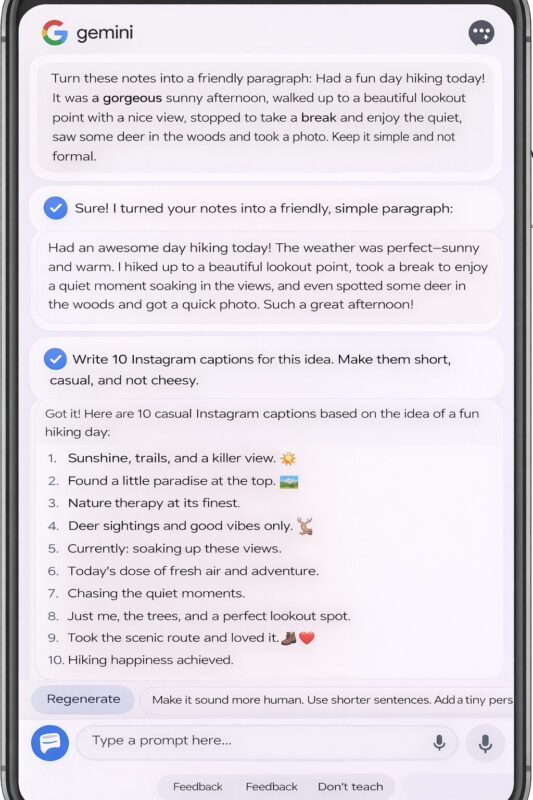
- “Turn these notes into a friendly paragraph: (paste notes). Keep it simple and not formal.”
Real example: captions and short posts
What I type:
- “Write 10 Instagram captions for this idea. Make them short, casual, and not cheesy.”
What I watch out for
Sometimes AI writing can feel too “smooth.” When that happens, I ask:
- “Make it sound more human. Use shorter sentences. Add a tiny personal tone.”
google gemini for brainstorming (when I’m stuck) 💡
Brainstorming is where I can waste hours if I’m not careful. So I use google gemini with tight limits.
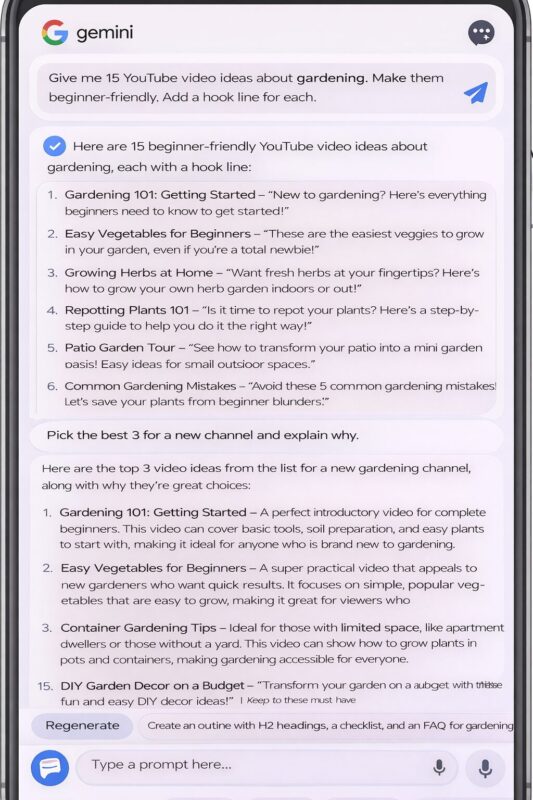
Real example: video ideas
What I type:
- “Give me 15 YouTube video ideas about (topic). Make them beginner-friendly. Add a hook line for each.”
Then I narrow it down:
- “Pick the best 3 for a new channel and explain why.”
Real example: blog structure
What I type:
- “Create an outline with H2 headings, a checklist, and an FAQ for (topic).”
My rule
I don’t brainstorm forever. I choose one idea and move forward. Momentum matters more than perfect idea hunting.
google gemini for comparison decisions (simple pros/cons) ⚖️
Any time I’m choosing between two options, I use google gemini to lay it out clearly.
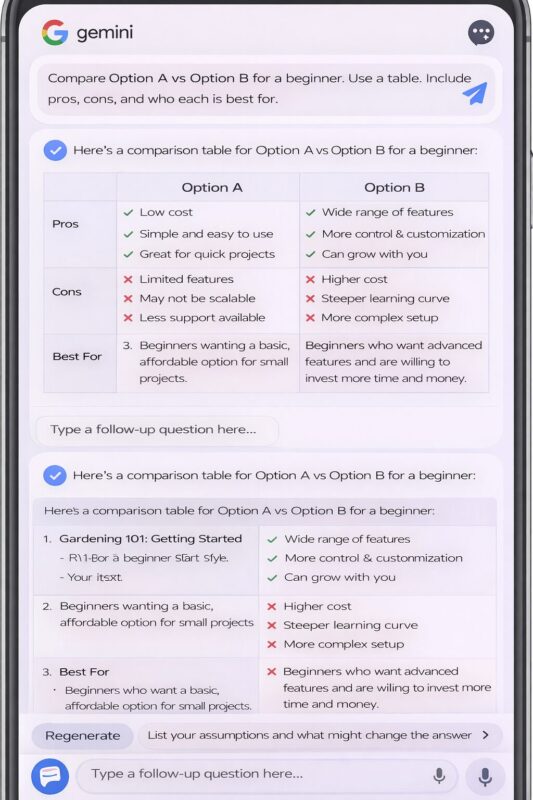
Real example: comparing tools or plans
What I type:
- “Compare Option A vs Option B for a beginner. Use a table. Include pros, cons, and who each is best for.”
Why this helps
It reduces emotional decision-making. I stop guessing and start comparing.
My safety habit
If it’s a “money decision,” I ask it to show assumptions:
- “List your assumptions and what might change the answer.”
That makes the output more transparent.
google gemini for simplifying long text (make it scannable) 🧾
If I have a long message, a long policy, or even a long set of instructions, I use google gemini to make it readable.
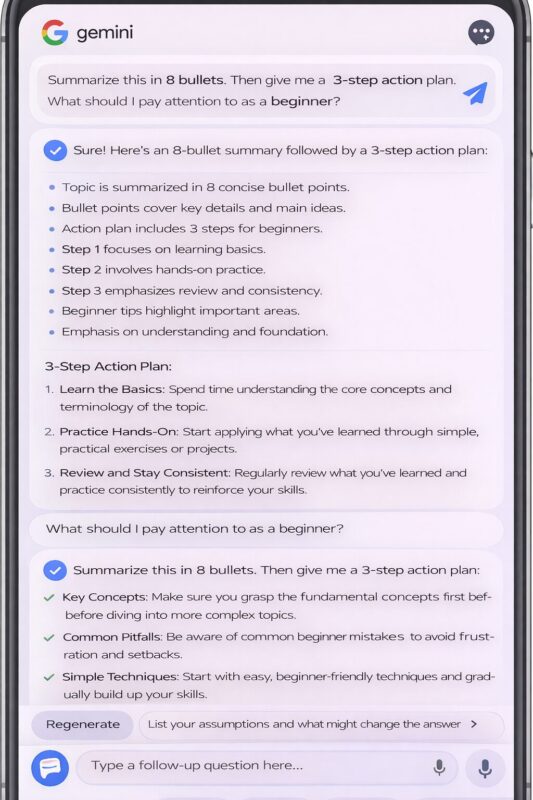
Real example: summarizing something
What I type:
- “Summarize this in 8 bullets. Then give me a 3-step action plan.”
My favorite follow-up
- “What should I pay attention to as a beginner?”
This pulls out the “hidden important part” that I might miss.
google gemini for turning ideas into checklists ✅
Checklists are underrated. They help me actually finish things.
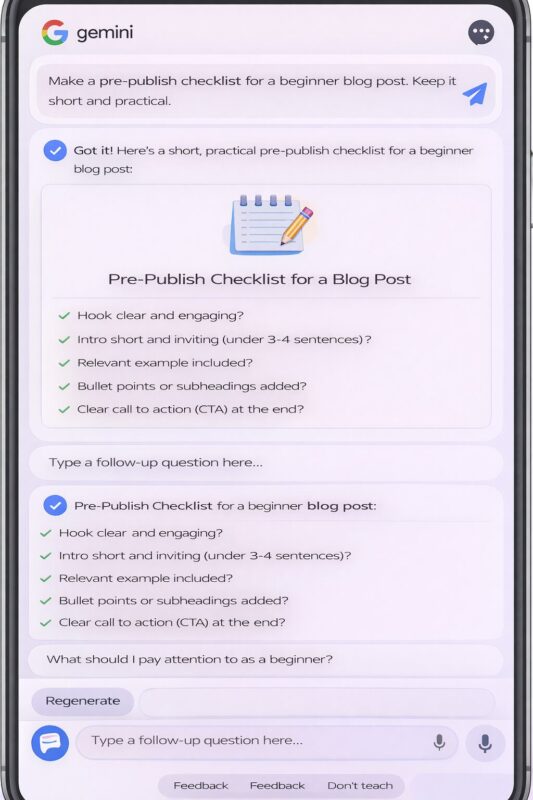
Real example: publishing a blog post
What I type:
- “Make a pre-publish checklist for a beginner blog post. Keep it short and practical.”
Then I save it and reuse it every time.
Example checklist style I like:
- Hook clear?
- Intro short?
- One example included?
- Bullets added?
- CTA included?
google gemini for personal workflow building (my weekly system) 🧩
Here’s a real system I use when I want consistency without burnout:
My simple weekly content workflow
- Day 1: Pick one topic + outline
- Day 2: Draft (section by section)
- Day 3: Create visuals + thumbnail ideas
- Day 4: Edit + simplify + add FAQ
- Day 5: Publish + repurpose into short posts
I use google gemini mainly on Day 1, Day 2, and Day 4.
The prompt I reuse weekly
- “Build me a weekly plan for creating content on (topic). Include: blog outline, video hook ideas, and 5 short post angles.”
That one prompt keeps me consistent.
Where google gemini feels strongest (my honest list) ⭐
In my experience, google gemini is strongest when I need:
- Quick summaries in simple language
- Fast outlines and structure
- Lots of options (ideas, hooks, captions)
- Clean rewriting of rough notes
- Beginner-friendly step-by-step instructions
It’s a “reduce friction” tool for me.
Where google gemini can feel limited (real talk) ⚠️
I still notice a few common limitations:
- Sometimes it plays safe and sounds generic
- Sometimes it repeats the same idea in different words
- Sometimes it assumes details instead of asking questions
- Sometimes it feels too polished, like “AI voice”
So I use small fixes:
- “Make it shorter and more direct.”
- “Ask me 3 questions before answering.”
- “Add one real example.”
- “Make it sound more human.”
Those lines improve the output fast.
My opinion section (how I get the best results) 🧠
Here’s my real opinion: google gemini is most useful when you already have a direction. If you’re completely lost, any AI tool can lead you into endless brainstorming. But if you know your goal—like “I want to write a blog post” or “I need a plan for my week”—then it becomes powerful.
I also think AI tools work best when you do the final pass yourself. I use AI for the first 70%: outline, first draft, options, summaries. Then I do the last 30%: remove fluff, add my tone, and insert real examples.
That last 30% is what makes the content feel like you. That’s what builds trust over time.
My ratings (tested, beginner-friendly) ⭐
Here’s my simple scorecard:
- Ease of use: 9/10
- Speed for planning and ideas: 8.8/10
- Writing help (rewrites, clarity): 8.5/10
- Studying support (explain + quiz): 8.4/10
- Consistency of tone: 7.8/10
- Overall value for daily life: 8.6/10
Not perfect, but very useful when used with a clear goal.
Quick “copy-paste prompts” I actually use 📌
Here are a few you can save:
- “Explain (topic) like I’m new. Use one simple example and 3 key points.”
- “Turn these notes into a friendly paragraph. Keep it short and clear: (notes).”
- “Make a realistic plan for my evening with these tasks: (list). Include breaks.”
- “Give me 15 hooks for a video about (topic). Keep them beginner-friendly.”
- “Summarize this in 8 bullets, then give me a 3-step action plan: (text).”
- “Rewrite this to sound more human. Short sentences. Less formal: (text).”
FAQ: google gemini in real life ❓
1) Is google gemini good for beginners?
Yes, especially for beginners who want simple explanations and quick structure. It’s helpful for outlines, summaries, and step-by-step plans. The best results come when you tell it your goal clearly instead of using vague prompts.
2) How do I stop google gemini from sounding robotic?
Ask for short sentences, casual tone, and fewer filler lines. Also add: “Write like a real person.” Then do a quick human edit—remove repeated ideas and add one personal example. That combination usually fixes the “AI feel.”
3) Can google gemini help with YouTube and Instagram content?
Yes. For YouTube, it helps with hooks, script structure, and repurposing into shorts. For Instagram, it helps with carousel slide text, caption variations, and content ideas. You’ll still want to design visuals in a tool like Canva for best results.
4) What kind of tasks should I not rely on google gemini for?
I don’t rely on it for exact “always correct” facts, prices, or policy claims without checking. It can also guess details if your prompt is unclear. If accuracy matters, ask it to list assumptions or ask clarifying questions first.
5) What’s the easiest way to start using google gemini daily?
Start with one habit: use it for planning or summarizing. For example, every evening ask: “Make a simple plan for tomorrow.” Or whenever you read something long, ask: “Summarize this and give me next steps.” Small daily use builds confidence fast.
r01a6b
Awesome content! AI presentation tool is another site I’d recommend for similar topics.